Group Assignment
-
Assign people to Groups & Classes
-
Indicate Start and End Dates
-
Add Roles and Comments
Access Assign Groups
To access from the Button Bar, go to Groups/Skills > Assign Groups.

Assign Groups/Classes & Skills/Interests Screen
-
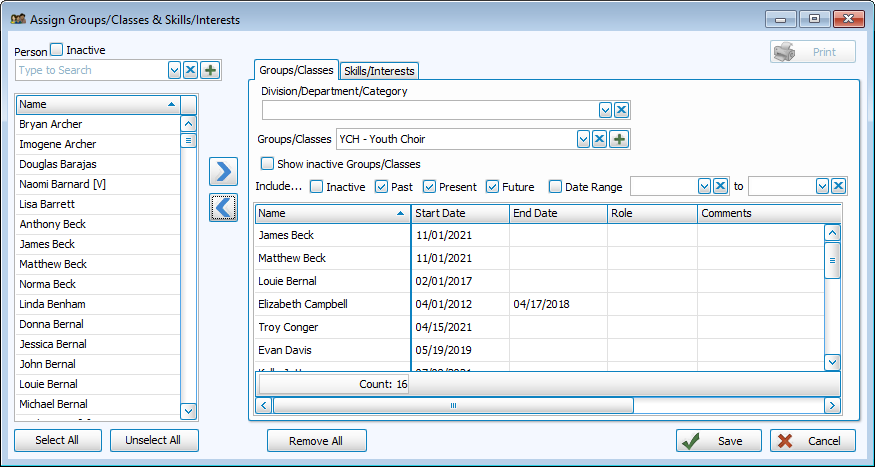
Filter your options with the check boxes to include Events or Groups/Classes. You can further filter Groups/Classes by selecting a Division, Department or Category. Then, select the Event, Group or Class from the drop down.

-
Include Groups/Classes that have been marked as Inactive with this check box.

-
View Group members based on their Start and End Dates with checkboxes or a specified date range. You may also include or exclude Inactive people.


-
Clear a group of all members by clicking
 . This will clear the history. Use End Dates to indicate the individual is no longer participating in the group while maintaining their history.
 -
Click
 to bring group members in Reports, Labels or Email.
Assign People to a Group or Class
From the Assign Window
-
Select the Group or Class to which you'd like to assign.
-
On the left side, search for people in the person drop down or select from the alphabetized list.
Click to choose everyone and
  to clear selections.
If selecting from the list, CTRL + Click allows you to select multiple people and SHIFT + Click selects a range.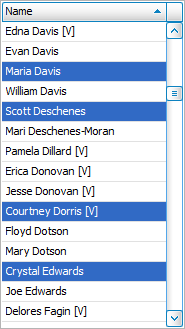
-
Use the

 buttons to move people into or out of the group or double-click their name on the left.
 -
You have the option to add applicable dates, roles and comments.
-
Click
 to finish.
From the Individual Record
-
Navigate to the individual record of the person you want to add.
-
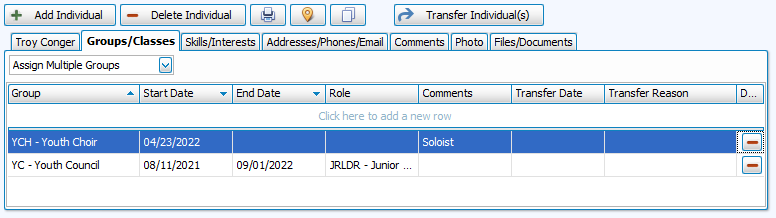
Click the Groups/Classes tab on the right side.
-
To assign to multiple groups, click
 and check boxes in desired groups.
To assign to individual groups, click the top of the grid and select a group from the drop down on the left.
-
Optionally add applicable dates, roles and comments.
-
Click
 to finish.
From the Find Grid
-
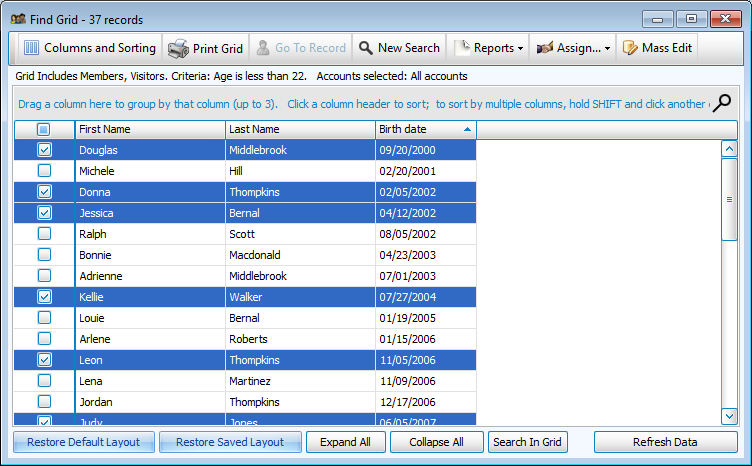
Query the Find Grid and select people to add to a group or class.
-
Click
 .
. -
Select the group you wish to add selections to.
-
Click
and  to add selections from the grid to the group.
 -
Click
.